


Data Cleaning in Pandas helps you prepare raw data for real work. Your file may contain repeated rows, empty cells, wrong emails, wrong phone numbers, or missing values. If you try to use this data in reports or models, you get wrong results.
Cleaning solves this problem. You fix mistakes, fill empty values, and remove duplicates. This guide explains every step in a simple way so even a child in school can follow it.
Download Sample Dataset: duplicate dataset & missing file
Data Cleaning in Pandas
Data cleaning is the first step of data analysis. You remove duplicate rows, handle missing values, and make the file ready for correct results. Pandas gives you simple functions to do this fast.
Understanding Duplicates in Data Cleaning in Pandas
Duplicate rows appear when the same entry is saved twice or more. These repeated values affect totals, averages, and customer counts. You must find and remove them.
Get the dataset
import pandas as pd
df = pd.read_csv('duplicate dataset.csv')
df
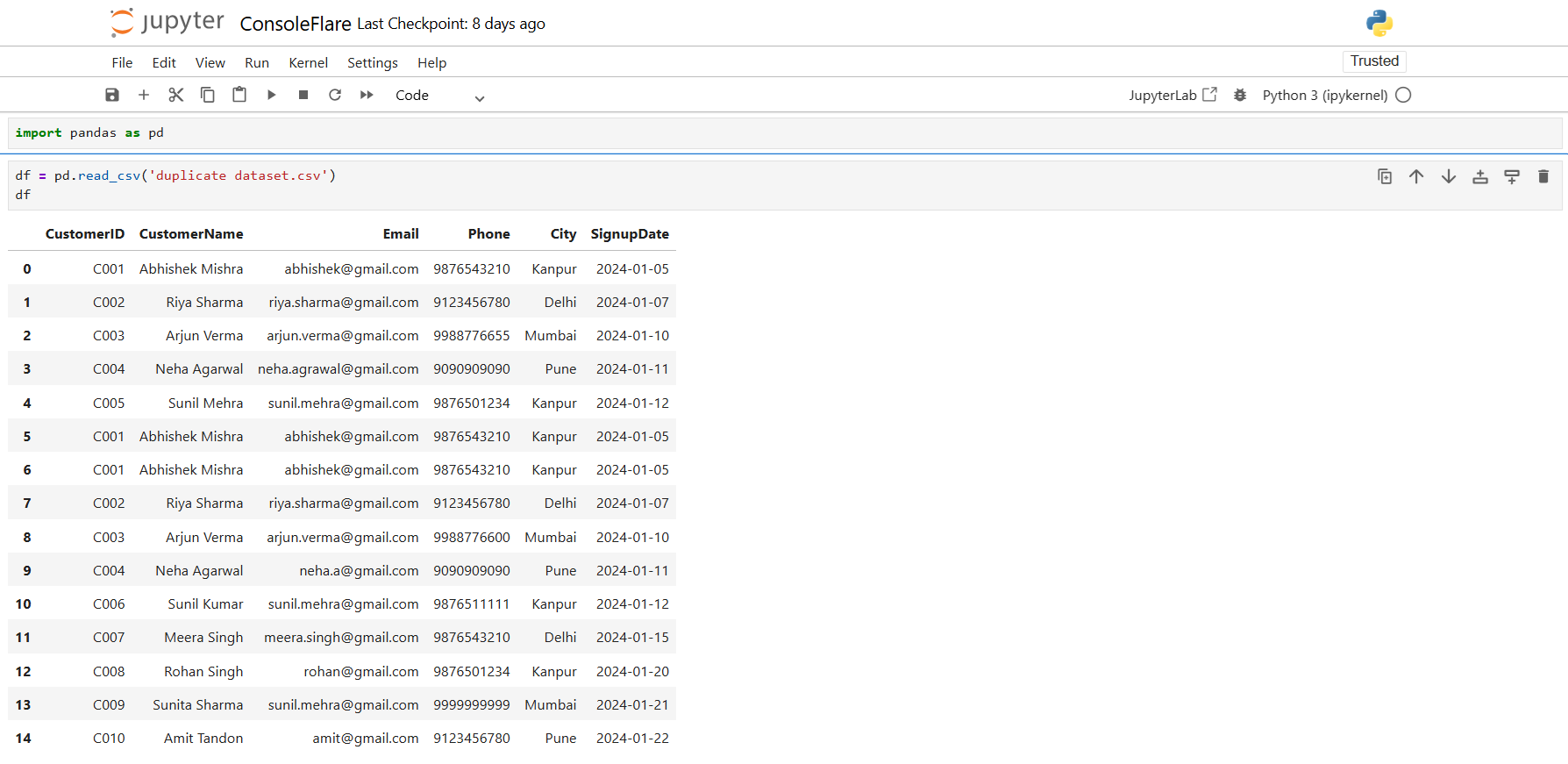
There are multiple entries featuring identical CustomerIDs, Emails, and Phone numbers. These are obvious duplicates.
Identify Duplicate Rows
Find all rows that appear more than once:
df.loc[df.duplicated()]
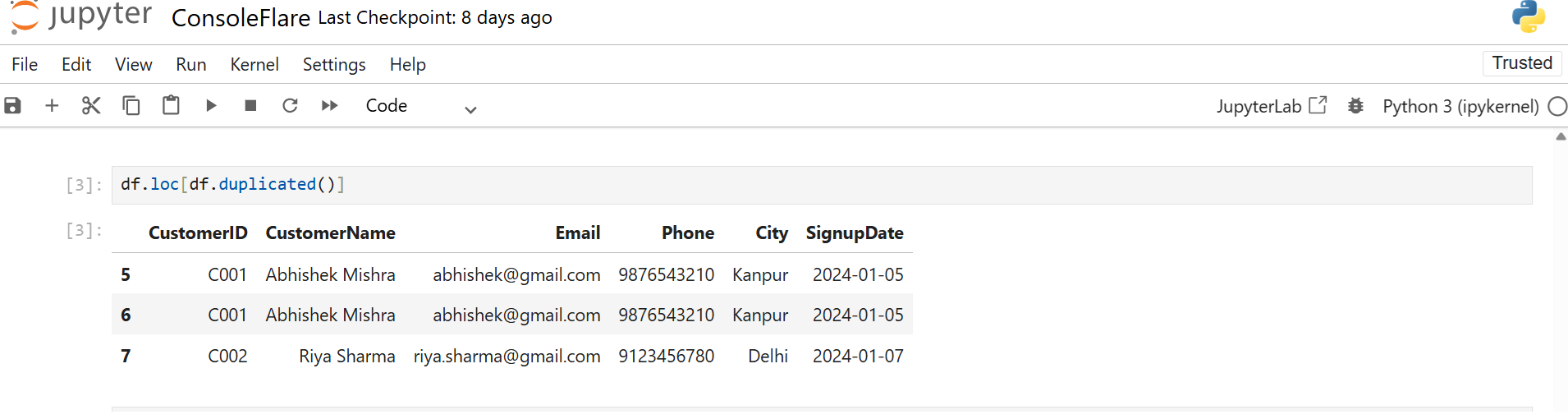
This shows duplicates while keeping the first original row.
Control duplicate detection using keep
You control which row Pandas treats as a duplicate.
keep='first' keeps the first record and treats the rest as duplicates.
With keep='last'Pandas keeps the last record and marks earlier ones as duplicates.
df.loc[df.duplicated(keep='first')]
df.loc[df.duplicated(keep='last')]
df.loc[df.duplicated(keep=False)]

This allows you to maintain complete control and concentrate on the specific rows you desire.
Use a subset to look for duplicate values in particular columns.
Sometimes, all that is required to be unique is the phone number or email address. Make use of subsets.
df.loc[df.duplicated(subset='Email', keep=False)]

Check duplicates by CustomerName and City:
df.loc[df.duplicated(subset=['CustomerName','City'], keep=False)]
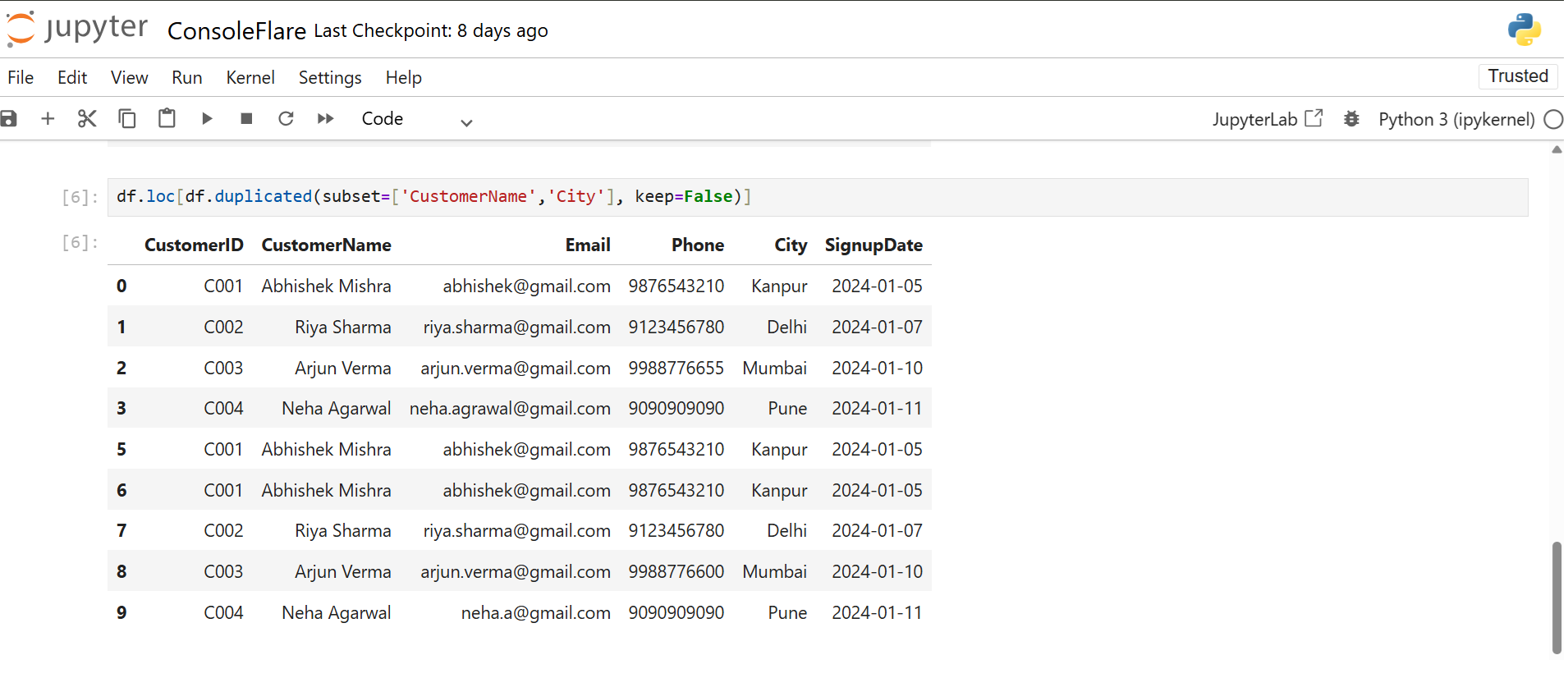
This works well for checking fraud, repeated customer entries, or typo cases.
Remove Duplicate Rows in Data Cleaning in Pandas
To remove all exact duplicate rows, use:
df = df.drop_duplicates()
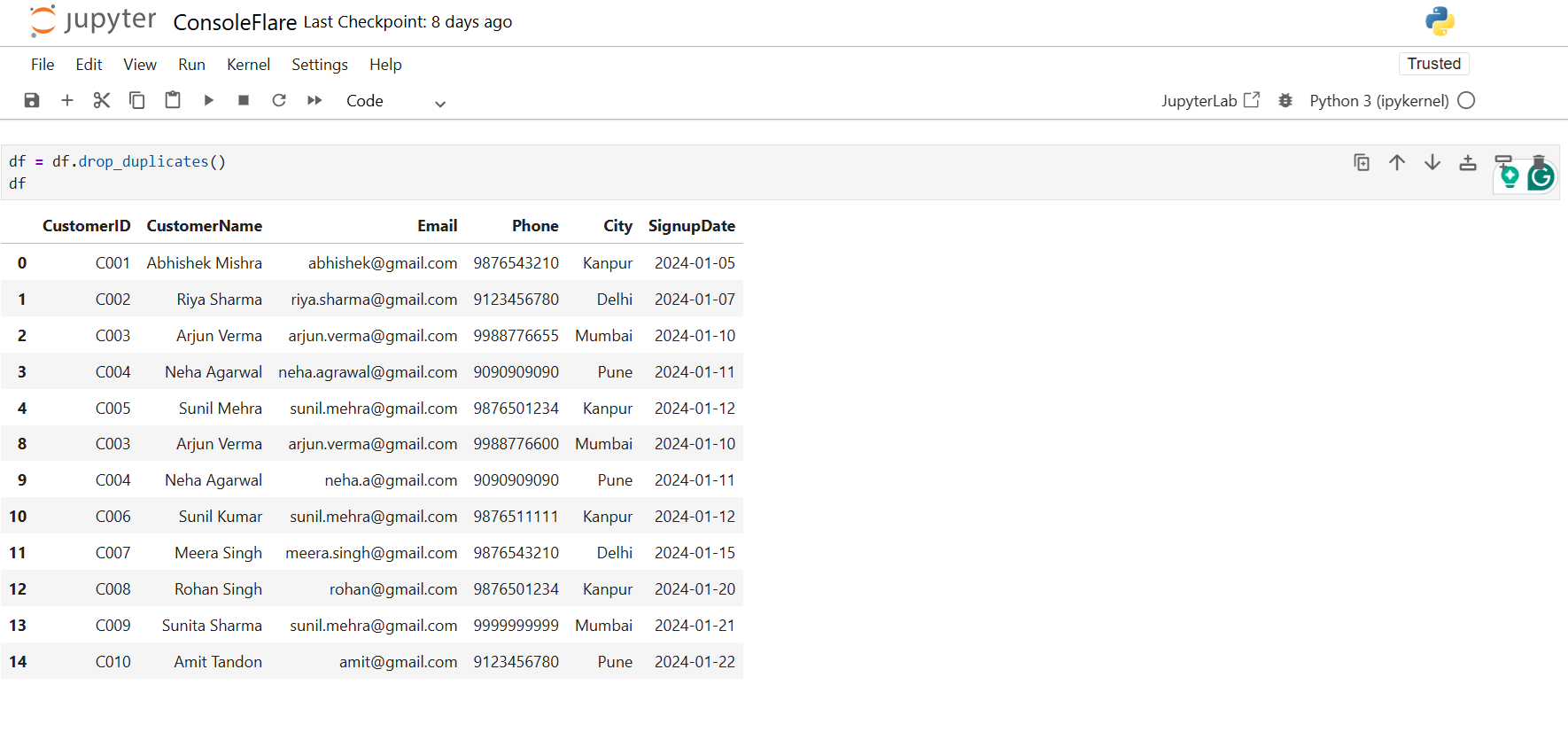
If you want to delete rows where the Phone number appears more than once, run:
df = df.drop_duplicates(subset='Phone', keep=False)

When both Email and Phone must be unique, apply:
df = df.drop_duplicates(subset=['Email','Phone'], keep=False)
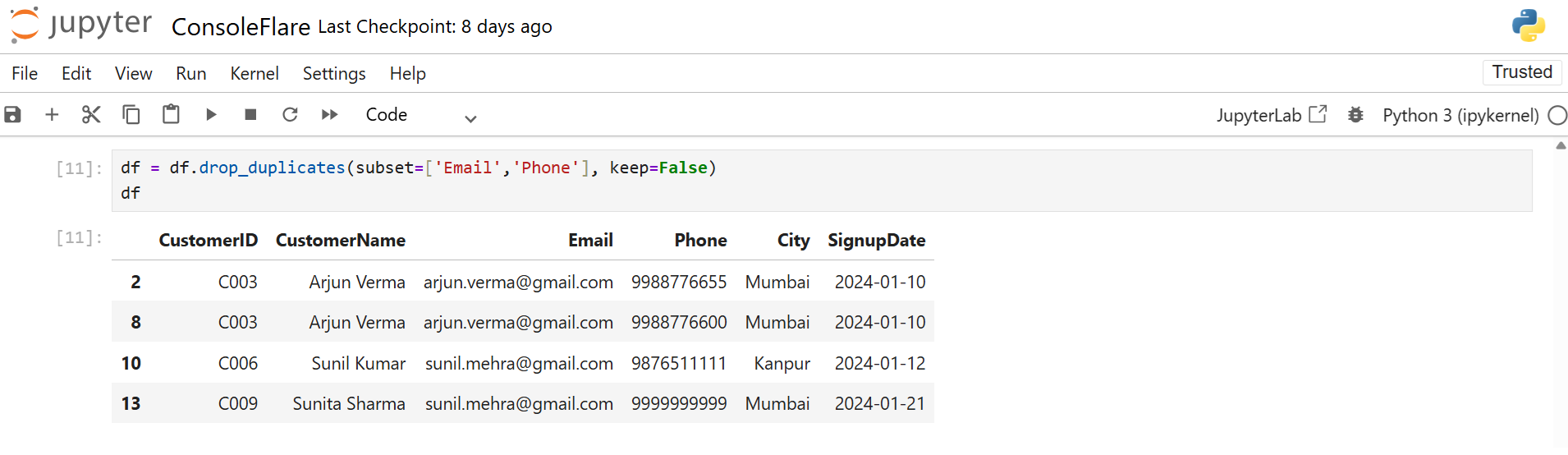
This gives you a clean, unique dataset.
Missing Values in Data Cleaning in Pandas
Missing values appear when data entry is incomplete. Pandas marks missing values as NaN.
You must detect and fix them. If not, your calculations stop or give wrong numbers.
Load Missing Value Dataset
df = pd.read_csv('missing file.csv')
df
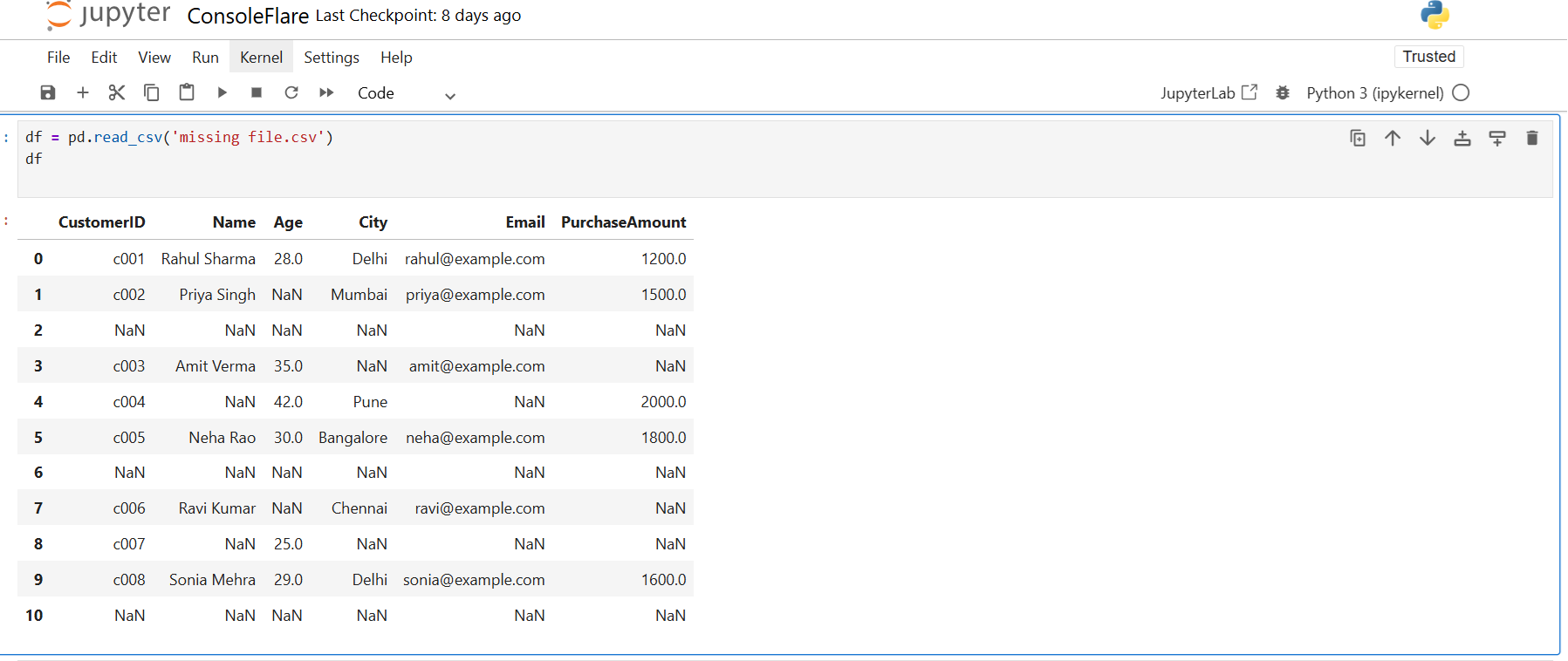
You see NaN in Name, Age, City, Email, and PurchaseAmount.
Check Missing Values in Data Cleaning in Pandas
Use this to see which cells contain missing values:
df.isna()

To get the total number of missing values in each column, run:
df.isnull().sum()
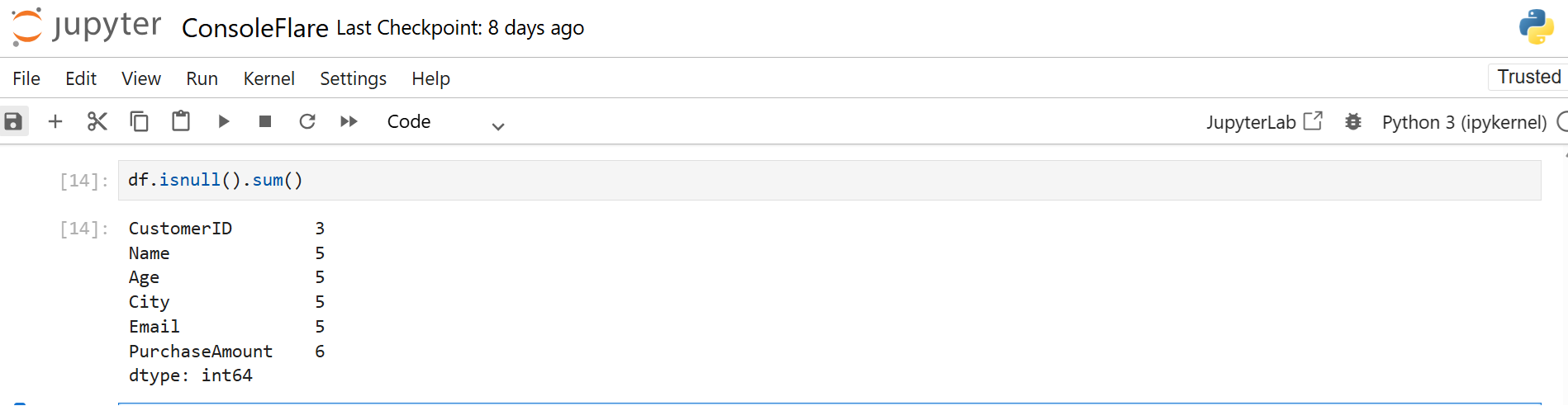
You can also count missing values row-wise:
df['missing'] = df.isnull().sum(axis=1)
df
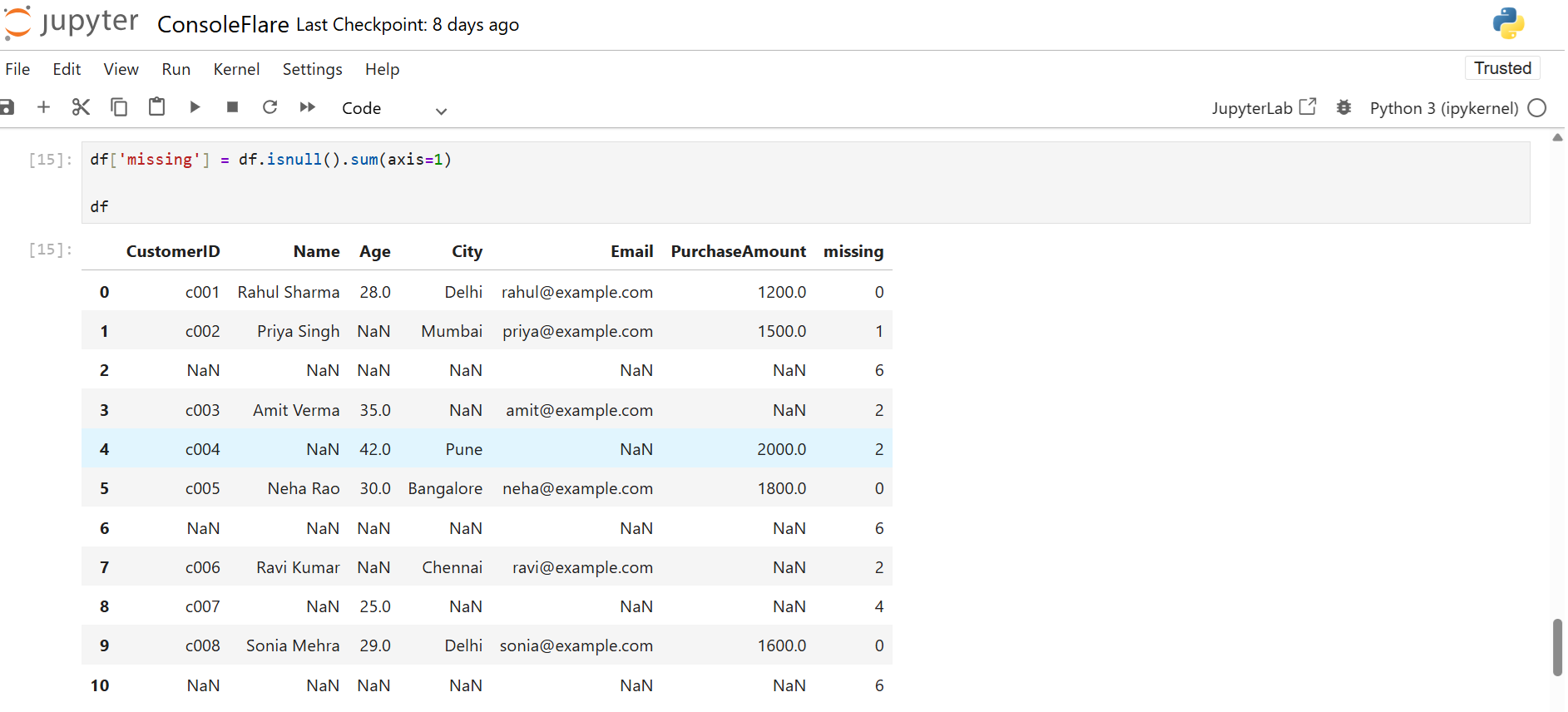
To view only the rows where Age is empty, apply:
df.loc[df['Age'].isnull()]

Check Non-Missing Values
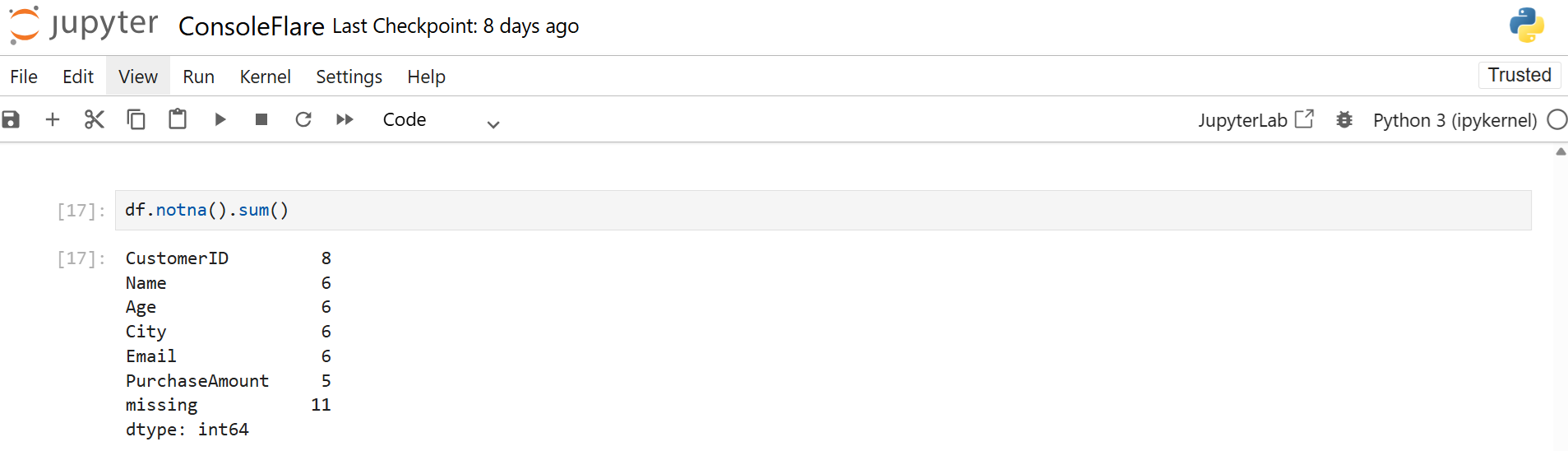
Count valid values:
df.notna().sum()
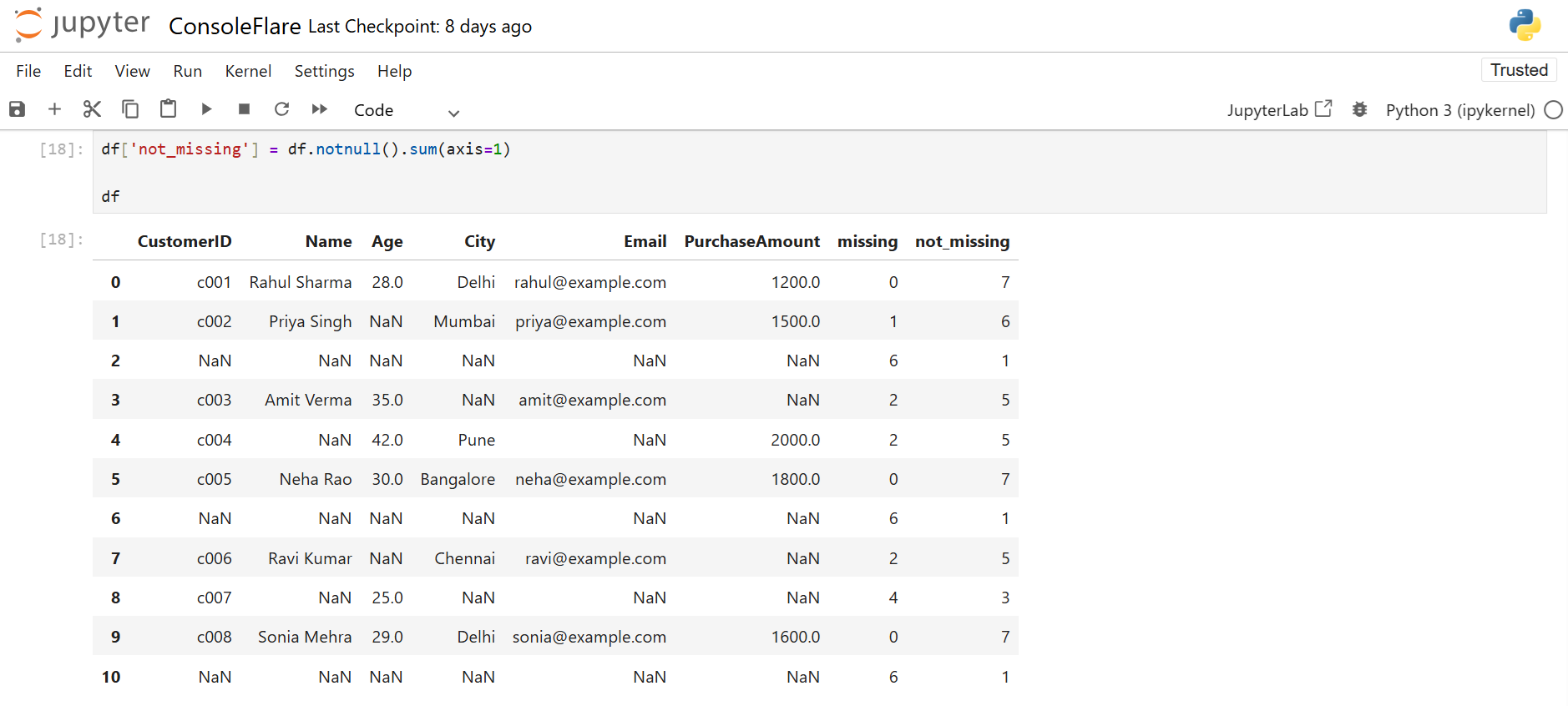
Add non-missing count per row:
df['not_missing'] = df.notnull().sum(axis=1)
df
Filter rows where Age is present:
df.loc[df['Age'].notnull()]
Fill Missing Data in Data Cleaning in Pandas
You fill in missing values to keep your dataset complete.
Fill Everything with Zero
df = df.fillna(0)

Useful for numeric columns.
Fill Selected Columns Using a Dictionary
d = {
  'CustomerID': 'User',
  'Name': 'user',
  'Age': df['Age'].mean(),
  'City': 'no city',
  'Email': 'no email',
}
df = df.fillna(d)
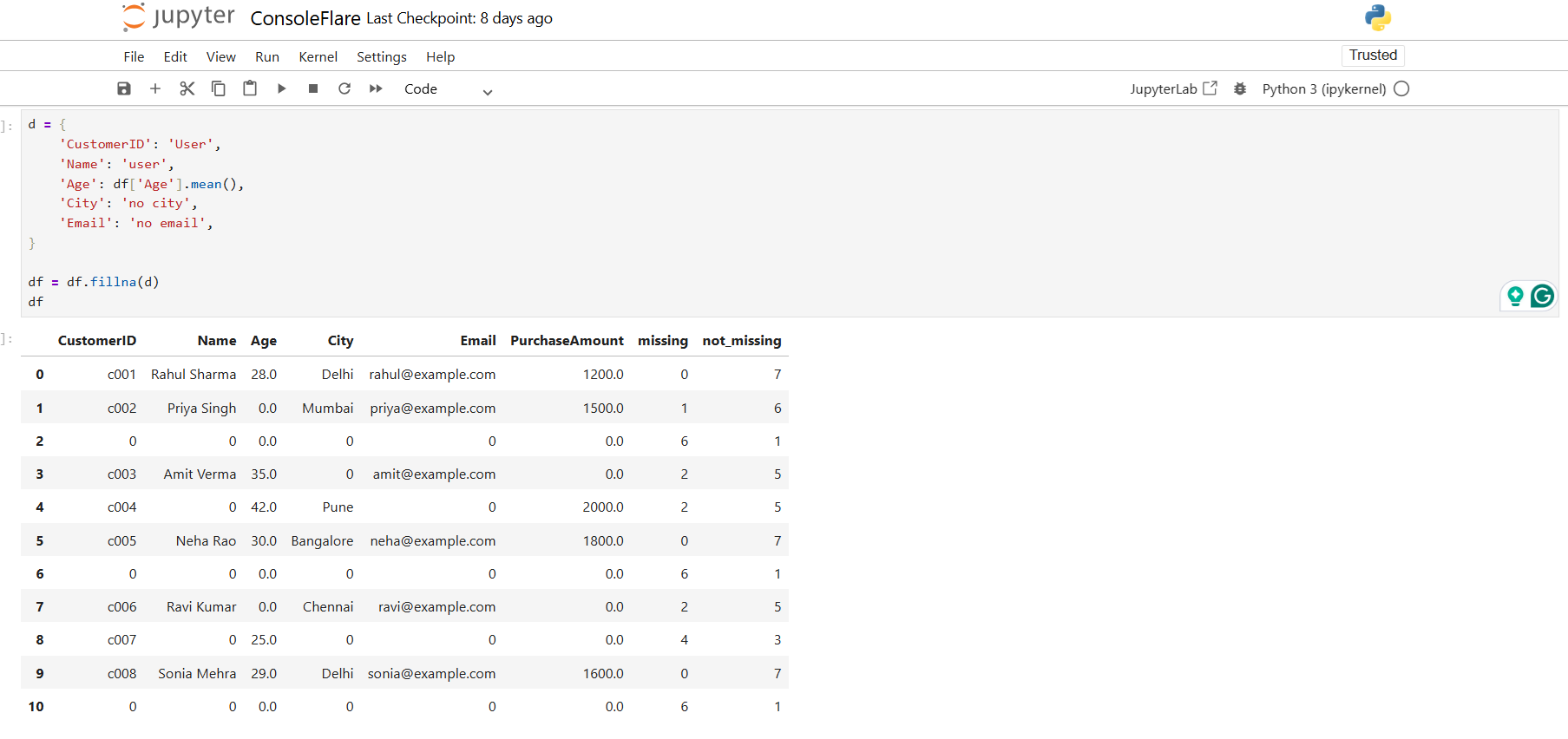
This fills each column with a different value.
Fill Using Mean or Median
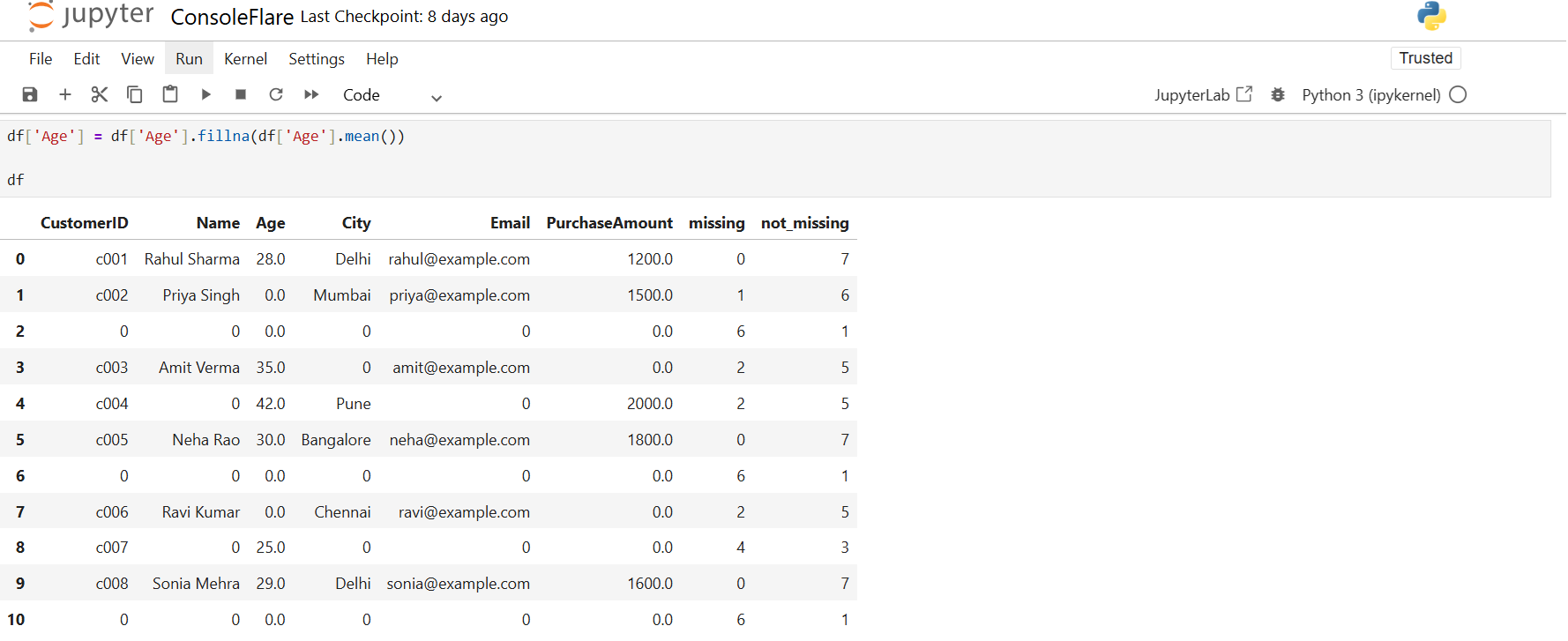
To replace missing Age values with the column mean, use:
df['Age'] = df['Age'].fillna(df['Age'].mean())
You can fill in missing PurchaseAmount values in the same way:
df['PurchaseAmount'] = df['PurchaseAmount'].fillna(df['PurchaseAmount'].mean())
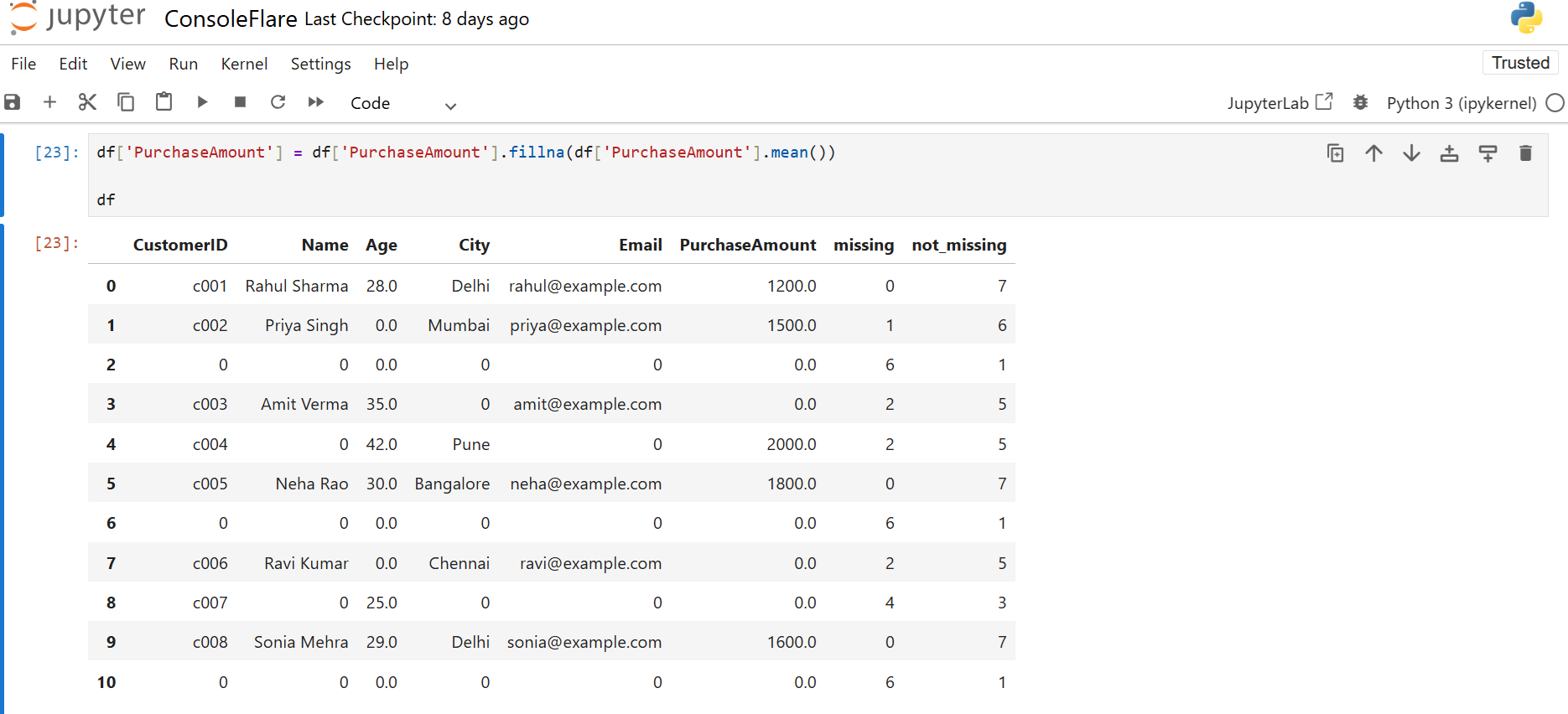
This is useful when your numbers should stay realistic.
Remove Missing Values in Data Cleaning in Pandas
Use dropna() when missing values are useless or rows are too incomplete.
How dropna()’s parameter
To eliminate rows with at least one missing value, use how=‘any’:
df.dropna(how='any')
Use the following to remove rows in which every value is absent:
df.dropna(how='all')
dropna()’s subset parameter
Only when certain columns are absent can you drop rows:
df.dropna(subset=['Email','Phone'])
Age-specific missing values can be removed like this:
df.dropna(subset='Age')
The following is used to filter rows that lack a name or city:
df.dropna(subset=['Name','City'])
Remove Name, Age, and City if they are all blank by using:
df.dropna(subset=['Name','Age','City'], how='all')
Dropna()’s Threshold Parameter
A row should only be kept if it contains a specific number of valid values.
df.dropna(thresh=3)
Keep rows where at least 2 of Name, Age, City are present:
df.dropna(subset=['Name','Age','City'], thresh=2)
This prevents deleting rows that still contain useful information.
Useful Data Cleaning Activities in Pandas
Absence of Value Checks
df.isnull().sum()
df['missing'] = df.isnull().sum(axis=1)
dropna() Practice
df.dropna(how='any')
df.dropna(how='all')
df.dropna(subset='Email')
df.dropna(subset=['Name','City'])
df.dropna(subset=['Name','Email'], how='any')
df.dropna(thresh=3)
fillna() Practice
df['City'] = df['City'].fillna('Unknown')
df['Age'] = df['Age'].fillna(df['Age'].mean())
df['Salary'] = df['Salary'].fillna(df['Salary'].median())
df['Phone'] = df['Phone'].fillna('Not Provided')
df['Email'] = df['Email'].fillna('test@example.com')
df.dropna(subset=['Email','Phone'])
df.dropna(subset=['SignupDate'])

df2 = df.dropna(thresh=2)

df['City'] = df['City'].fillna('NA')
df['Age'] = df['Age'].fillna(0)

df = df.fillna('Missing')

df = df.fillna(df.mean(numeric_only=True))
An Overview of Pandas Data Cleaning
You now comprehend:
How to identify and eliminate duplicate rows
How to identify values that are missing
How to accurately fill in the missing values
How to remove rows that contain insufficient information
How to use thresh, how, and subset
How to get clean data ready for analysis
Internal link:
Pandas String Functions in Python: Full Guide With Examples
Value_counts and Groupby in Pandas Explained in Easy Steps
Date Handling in Pandas in Easy Steps
Link once to Pandas official documentation:
Conclusion
Data Cleaning in Pandas helps you fix duplicate rows, handle missing values, and prepare your dataset for correct results. You learn how to use functions like duplicated(), dropna(), and fillna() to clean files in a simple and structured way. These steps make your data reliable for reports, dashboards, and machine-learning tasks.
If you want to understand data work in a practical way, learn more about Python, or explore real project workflows, join our free workshop on Master in Data Science with Power BI. You get a clear roadmap, job-focused skills, and guidance from trainers who teach in simple Hindi.
To join, register on ConsoleFlare. Our team will contact you and guide you through the next steps.